Home Network Security
Home Router Guest Wi-Fi QR Code Privacy Audit for 2026
A home-network privacy audit for guest Wi-Fi QR cards, router labels, access sharing, device isolation, and safer household handoffs.
- Use source-backed steps before changing security settings.
- Prioritize MFA, updates, backups, segmentation, and phishing-resistant habits.
- Save only the guides you need; no account is required.
Guest Wi-Fi QR cards are convenient, but convenience can turn into long-lived access if the card is copied, photographed, left on a counter, or reused after the visit. This audit helps households and home-office users share internet access without exposing router administration, personal devices, smart-home equipment, or private network labels.
The goal is not to create a complex enterprise network. The goal is to separate guests from household devices, rotate access when needed, and avoid publishing a scannable credential in photos, rentals, parties, or social posts. Use your router vendor documentation and ISP instructions for exact settings.
Start with the network boundary
A guest network should be separate from the main household network. If your router supports client isolation or “guest access only,” use it so visitors can reach the internet but not printers, NAS devices, work laptops, security cameras, baby monitors, or smart-home controllers. If your router does not support guest isolation, consider whether sharing the main password is worth the risk.
Do not reuse the administrator password as the Wi-Fi password. The router admin password controls settings; the guest Wi-Fi password only grants network access. They should be different, stored separately, and changed when you suspect either one was exposed.
QR card decision table
| Question | Safer answer | Risky pattern |
|---|---|---|
| Does the QR code reveal the real guest password? | Treat it like a password and keep it off public photos | Posting it in listing photos or party pictures |
| Can guests reach household devices? | Enable guest isolation or internet-only access | Letting guests browse local printers and storage |
| Is the card permanent? | Rotate after large events, rentals, or unknown visitors | Keeping one code for years |
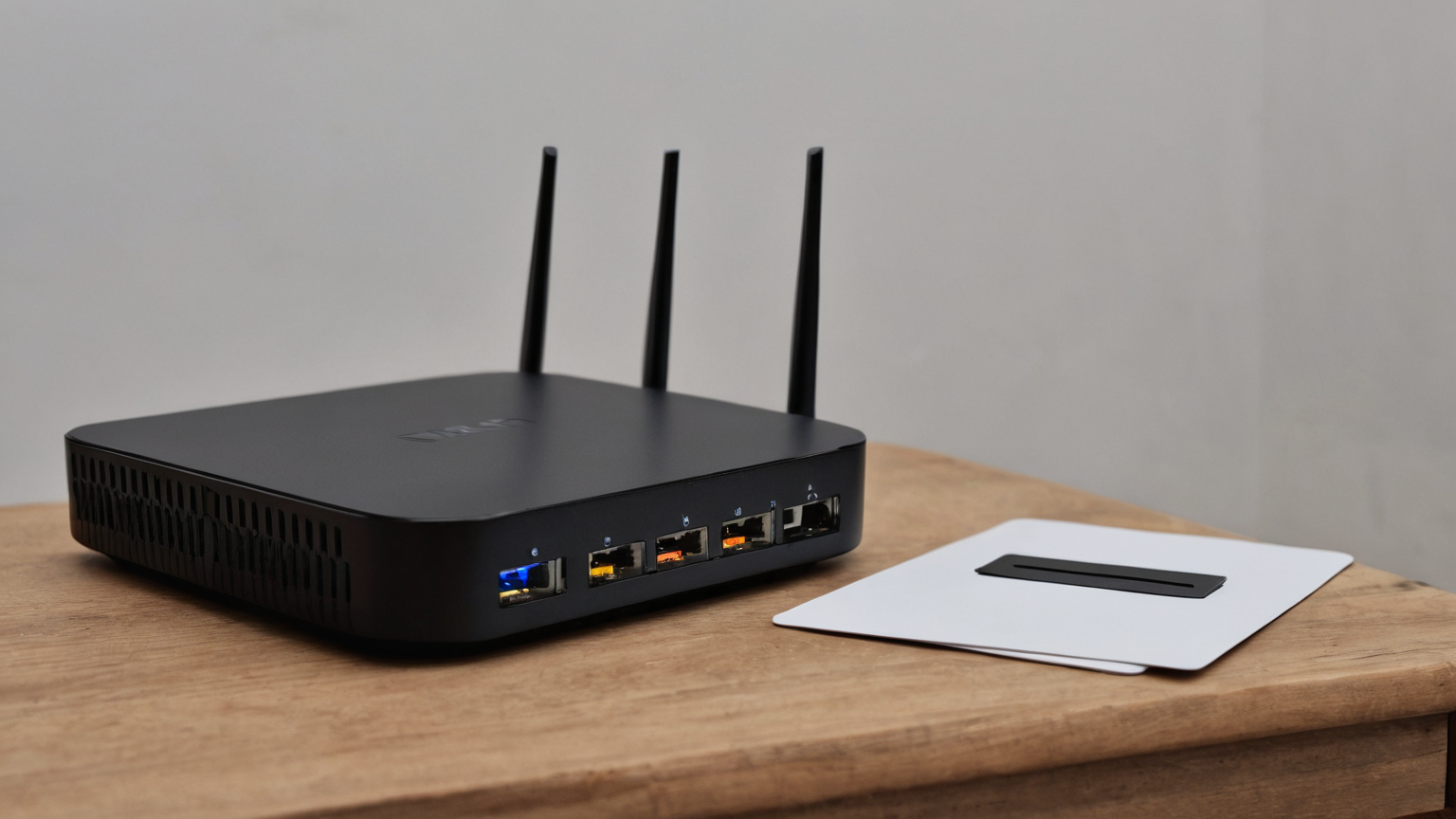
| Is the router label visible? | Cover or turn away labels in photos | Showing serial numbers, default SSID, or setup codes |
| Who can change settings? | Only the household admin through the official router app/page | Sharing admin credentials with guests |
How to audit an existing QR card
First, confirm what the QR code encodes. Many cards store the SSID, password, and security type. If the card was generated years ago, verify that it still points to the intended guest network and not to the main network. If you are not comfortable decoding the card safely, simply make a new one after setting a fresh guest password.
Second, inspect where the card appears. Look at entryways, kitchen counters, rental binders, fridge doors, and any photos you have posted online. A visible QR code can be scanned from a surprisingly casual photo. If a code appeared in public media, rotate the guest password and replace the card.
Third, review devices connected to the guest network. Many routers show a device list. Remove unknown devices if your router supports it, and rotate the guest password after parties, contractors, short-term stays, or any situation where the code may have been copied.
Practical router settings to check
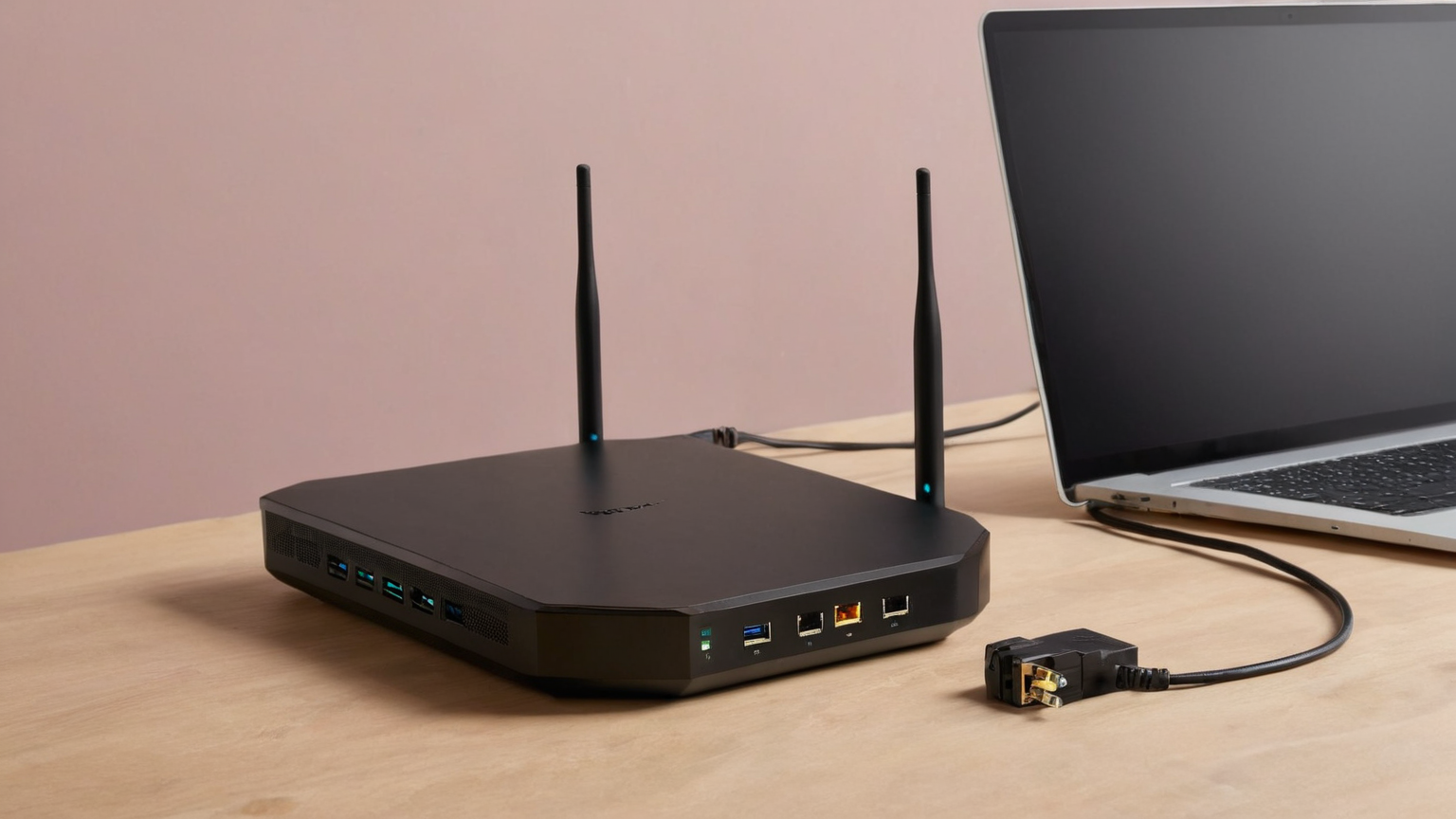
Use the official router app, ISP gateway page, or vendor support document. Look for guest network name, password, security mode, device isolation, local-network access, WPS, admin password, firmware/update status, and recovery email. Avoid unofficial driver packs, random “router optimizer” downloads, or support numbers found in ads.
For the guest network name, avoid broadcasting personal details such as family surname, apartment number, employer, or exact device model. A neutral name is easier to share and reveals less. For the password, use a phrase that is unique to the guest network and easy enough to type from a card but not reused anywhere else.
Practical checklist
- Confirm guest Wi-Fi is separate from the main household network.
- Enable guest isolation or internet-only access if the router supports it.
- Use a guest password that is not the router admin password and not reused elsewhere.
- Keep QR cards out of public photos, listings, social posts, and shared documents.
- Rotate the guest password after large gatherings, short-term stays, contractors, or suspected exposure.
- Hide router labels, serial numbers, setup codes, and admin URLs in photos.
- Turn off WPS if you do not actively need it and your router guidance supports disabling it.
- Save the official router support page and ISP contact path for recovery.
Common mistakes
The first mistake is believing a QR code is safer than a typed password. It is only a different format. If someone can scan it, they can use the network. The second mistake is printing a permanent card before confirming that guest devices are isolated. A guest network that reaches the household printer, storage drive, or work laptop is not just a convenience feature.
The third mistake is changing the Wi-Fi password but leaving the router admin password at a default or reused value. Guest access and administration are separate controls. Treat administration as higher risk, protect it with a unique password, and use multifactor or account recovery options when your router ecosystem offers them.
FAQ
Should I put a guest Wi-Fi QR code in a rental binder?
Only if the guest network is isolated and the code is treated as temporary access. Do not let the QR card expose the main network or router administration. Rotate the password when exposure risk changes.
Is it okay to photograph a room where the QR card is visible?
No. Move, blur, or replace the card before taking public photos. A readable or scannable-looking QR code in a listing or social post should trigger a guest password rotation.
What if my router cannot isolate guests?
Use the safest option your vendor supports, keep the guest password temporary, and avoid sharing access with people who do not need it. If home-office or sensitive devices are present, consider a router that supports guest isolation.
Summary
A privacy-safe guest Wi-Fi setup separates visitor access from household administration and devices. Review the QR card, rotate exposed passwords, hide router labels in photos, use official router guidance, and treat every printed code as a credential rather than decoration.
Event and rental reset routine
After a party, house-sitter visit, contractor visit, or short-term stay, treat guest Wi-Fi like a temporary key. Review the connected-device list, remove devices you do not recognize if your router supports it, rotate the guest password, and print a fresh QR card if guests still need access. This reset is especially important when the card was placed in a visible common area.
If you use cameras, smart locks, thermostats, or home-office equipment, confirm those devices stay on the private network. Do not put smart-home admin apps, router administration, or work devices on the guest network just to make setup easier. Network separation only helps if important devices remain on the correct side of the boundary.
Photo and listing hygiene
Before posting room photos, zoom in on counters, walls, routers, labels, and binders. Blur or remove QR cards, setup stickers, serial numbers, recovery codes, and default SSID labels. If a public photo already showed a code or label, rotate the relevant password and treat the old card as retired. The cleanup is quick, but leaving a public credential online can create months of uncertainty.
Household handoff rules
Everyone who can print, move, or photograph the guest card should know the same rule: the card is a password, not decor. Put it in a drawer or guest binder when not needed, and remove it before taking photos. If a child, roommate, or visitor wants to share the code with someone else, they should ask the household network owner first. That simple handoff prevents a temporary convenience from becoming uncontrolled access.
When a device stops working after password rotation, reconnect only the intended guest devices. Do not “temporarily” move unknown devices to the main network just to end complaints. A slow reset is safer than silently weakening the boundary you just created.
Final review question
Before marking the checklist complete, ask whether the next reader could act safely without guessing. If the answer is no, add one concrete contact, deadline, boundary, or recovery step, then remove any private detail that does not help the decision.
A strong router routine is boring on purpose. Guests get temporary internet access, household devices stay private, and the person responsible for the router can rotate credentials without rewriting the whole home setup. Keep the audit date with the card so rotation becomes routine rather than a forgotten emergency task.